
Objective
To set up, manage, and understand custom and recommended events in Google Analytics 4 (GA4), including how to register parameters as custom dimensions and metrics for more meaningful reporting.
Overview
In this SOP, you’ll learn how to:
- Understand events and their role in GA4
- Identify and implement recommended vs. custom events
- Create custom dimensions and metrics for reporting
- View and manage events in the GA4 Admin panel
Step 1: Understand What Events Are in GA4
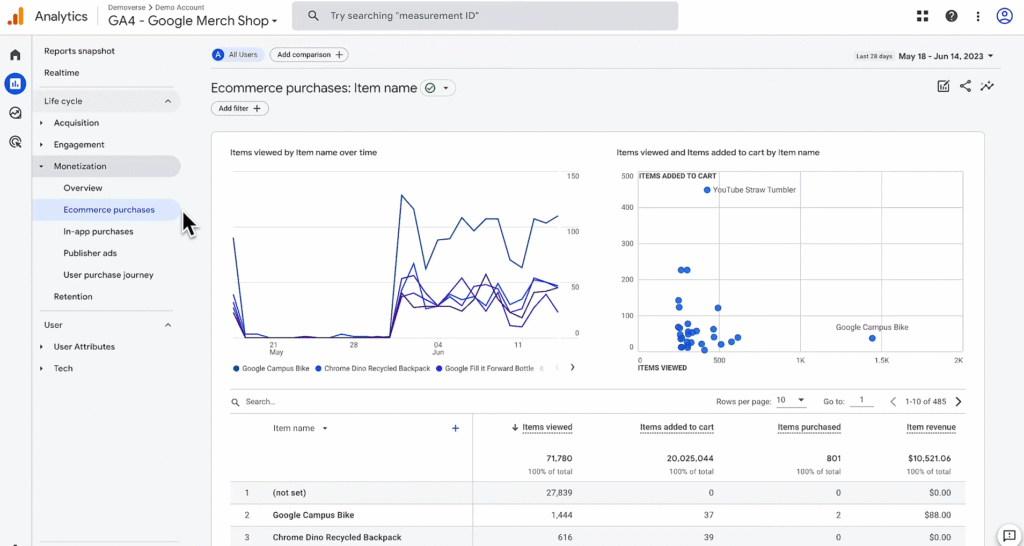
Google Analytics 4 tracks all interactions — such as clicks, page views, and purchases — as events.
GA4 collects events in three main ways:
1. Automatically Collected Events
These include:
- first_visit (web)
- first_open (app)
- page_view
- session_start
No coding is required for these once your data stream is connected.
2. Enhanced Measurement Events
If enabled in your data stream settings, GA4 automatically collects events such as:
- Scrolls
- Outbound link clicks
- File downloads
- Video engagement
3. Custom and Recommended Events
- Recommended Events:
Recognised by GA4 with predefined names and parameters (e.g., purchase, add_to_cart). - Custom Events:
Fully defined by you — useful for tracking business-specific user interactions (e.g., newsletter_signup, level_complete).
Event parameters add context to each event. For example, the page_view event may include the page_location parameter (the page URL).
Step 2: Implement Recommended or Custom Events
- Visit the GA4 Recommended Events documentation, here:
https://developers.google.com/analytics/devguides/collection/ga4/reference/events?client_type=gtag
- Follow implementation instructions for your platform (web or app)
- Use consistent event and parameter naming to maintain clean reporting
Tip: Reuse parameter names wherever possible to streamline data collection and avoid redundancy.
Step 3: Register Parameters as Custom Dimensions & Metrics
To make custom event data visible in reports, you need to register their parameters as:
- Custom Dimensions (e.g., product color, membership level)
- Custom Metrics (e.g., number of items added to cart)
How to Create a Custom Dimension:
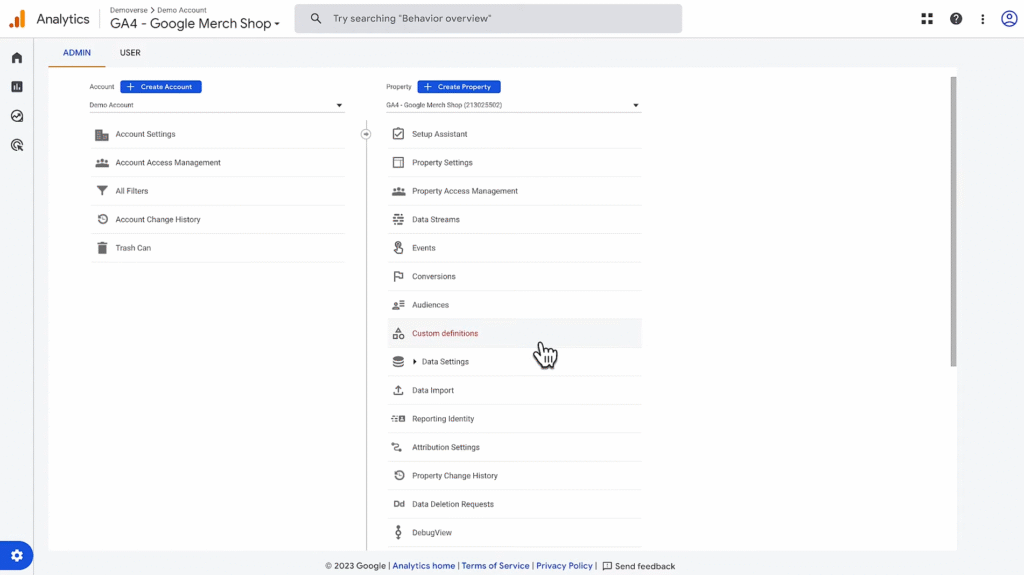
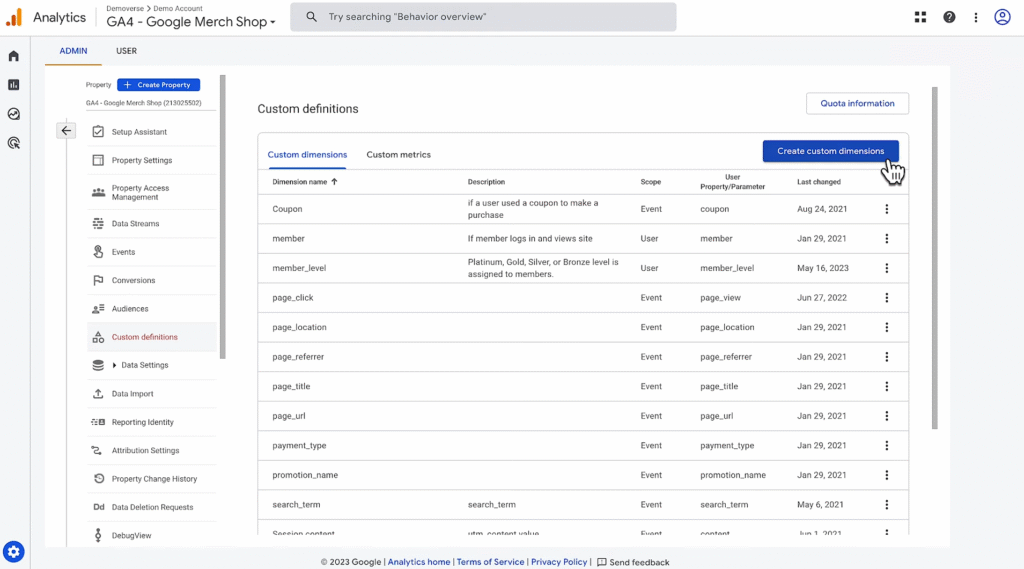
- Go to Admin → Custom Definitions → Create Custom Dimensions
- Enter:
- Name (e.g., “product_color”)
- Scope: Choose from:
- Event – Info about a specific action (e.g., article title clicked)
- User – Info about the user (e.g., user region)
- Item – Info about products (e.g., item brand)
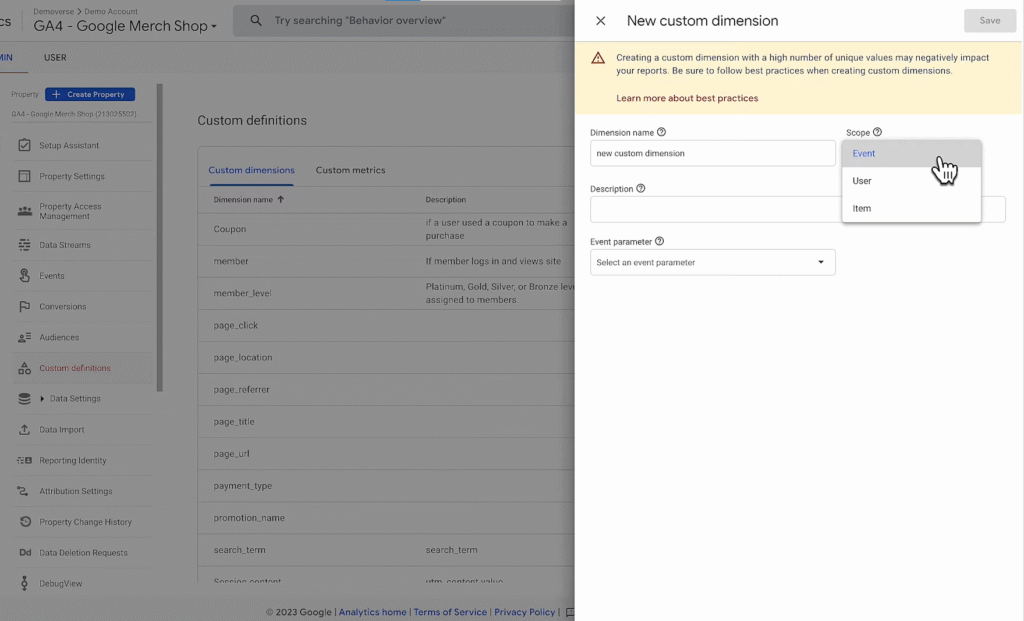
- Select the parameter from the dropdown
- Optionally add a description
- Click Save
The parameter must first be sent to GA4 before it appears in the dropdown.
How to Create a Custom Metric:
- Go to Admin → Custom Definitions → Custom Metrics → Create Custom Metric
- Enter:
- Name (e.g., “number_of_cart_items”)
- Scope
- Event parameter
- Unit of measurement (e.g., count, currency)
- Custom metrics always use Event scope
- Click Save
These are especially useful for tracking numerical values like scores, ratings, or quantities.
Step 4: View and Manage Events in the Admin Menu
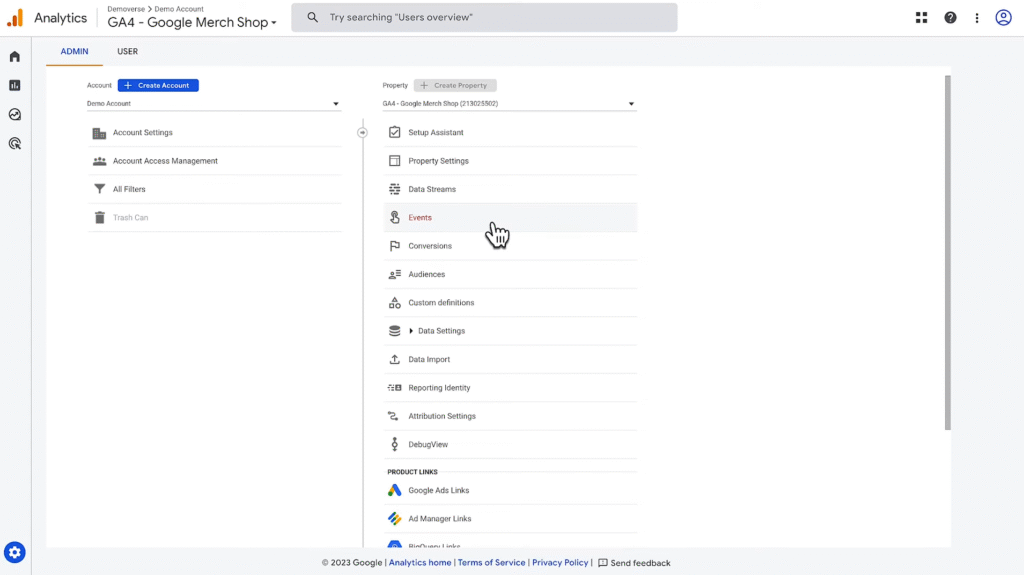
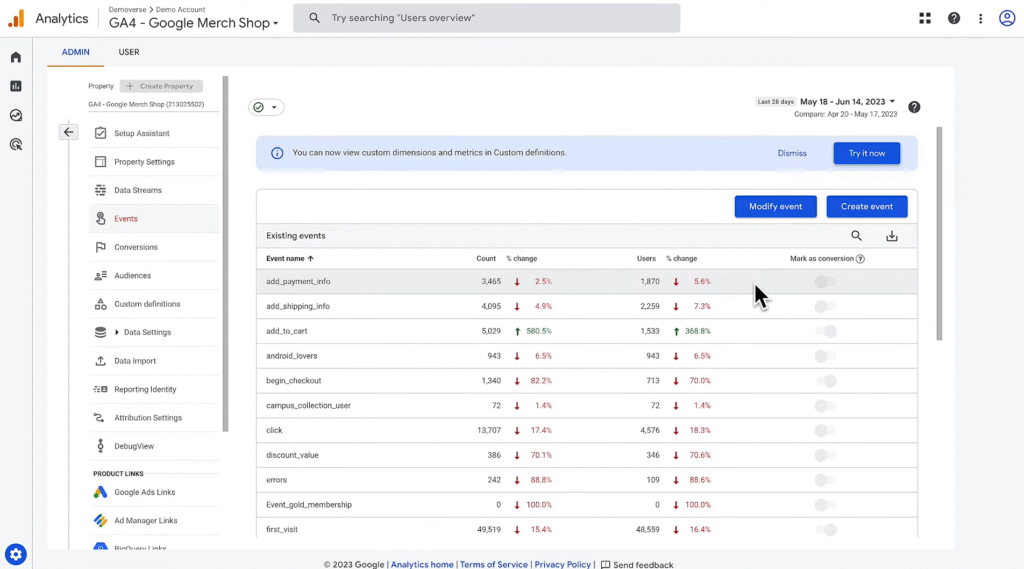
- Navigate to Admin → Events
- Here, you can:
- See a list of collected events
- Mark events as Conversions
- Check event names and frequency
Recommended and custom events will appear once they are triggered at least once on your site or app.
Note
- Custom events require both event name and parameter setup
- If you’re using recommended events, follow Google’s naming and parameter guidelines
- Dimensions = describe data (e.g., what product, which user)
- Metrics = measure data (e.g., how many, how much)