
Objective
This SOP outlines how to link Google Analytics 4 with Google Ads to unlock more accurate performance tracking, enhanced ad targeting, and smarter bidding strategies. By connecting the two platforms, you gain end-to-end visibility across the customer journey, from ad impression to conversion.
Overview
This SOP covers:
- Why you should link Google Analytics and Google Ads
- The step-by-step process to connect both platforms
- How to use advertising reports in GA4
- How to apply GA4 data in Google Ads
- Strategic business applications
Step 1: Understand the Benefits of Linking GA4 and Google Ads
When you link Google Analytics to Google Ads, you can:
- Track the full customer lifecycle, from ad interaction to conversion
- Create shared conversions for consistent reporting and automated bidding
- Build precise audiences for remarketing and campaign targeting
- Leverage cross-channel attribution to understand the role of paid and organic traffic
Step 2: Link Google Analytics to Google Ads
Before linking:
- Make sure you’re in the correct GA4 property.
- You need edit access in GA4 and admin access in Google Ads.
To link the accounts:
- In GA4, go to Admin
- Scroll down to Product Links → Google Ads Links
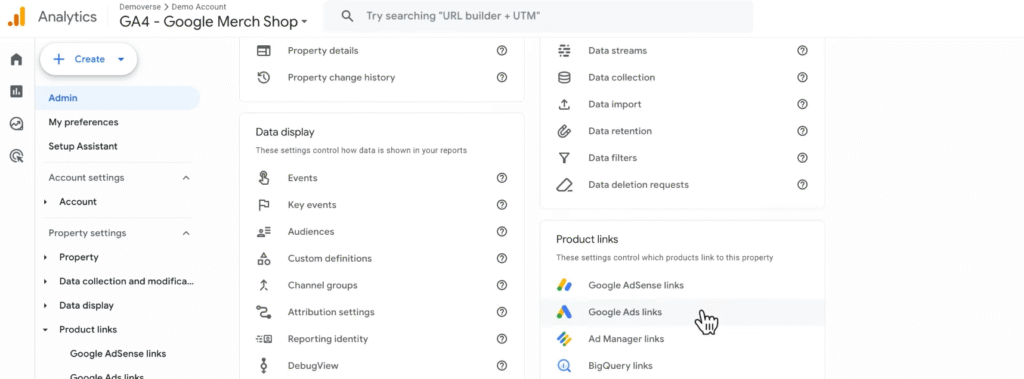
- Click the blue “Link” button
- Click Choose Google Ads accounts
- Select the Google Ads account(s) you want to link
- Click Confirm → Next
- Review settings such as:
- Personalized advertising
- Auto-tagging
- Feature access
- Click Next → Submit
It may take up to 24 hours for Google Ads data to appear in GA4.
Step 3: Access Advertising Reports in GA4
Once linked, go to the Advertising section in GA4 to analyze:
- Campaign performance (clicks, cost, CPC)
- Conversions and user actions
- Return on Ad Spend (ROAS)
- Attribution paths (user journey stages)
These insights help you evaluate what’s driving results and where to reallocate spend.
Step 4: Use GA4 Data in Google Ads
You can now use Analytics data directly within Google Ads to:
A. Enable Conversion-Based Bidding
- Share key events from GA4 as conversions in Google Ads
- Optimise bids using actual user behaviour (e.g., purchases, scrolls, downloads)
B. Create Remarketing Audiences
- Build audiences based on users who:
- Abandoned cart
- Visited key pages
- Completed specific sequences
- Combine audiences for even more refined targeting
Step 5: Business Use Cases and Questions
Linking GA4 and Google Ads helps answer:
- Where are users dropping off after clicking an ad?
- Which campaigns lead to high-value conversions?
- How does ROAS vary by channel?
- Which touchpoints matter most in multi-step journeys?
- How can I re-engage lapsed users with dynamic ad strategies?
Use this data to refine your ad messaging, targeting, and budget allocations for stronger results.