
Objective
To connect your mobile app (Android or iOS) to a Google Analytics 4 (GA4) property through an app data stream using the Firebase SDK, enabling event tracking across devices for in-depth user insights.
Overview
In this SOP, you’ll learn how to:
- Create an app data stream
- Set up Firebase (automatically or manually)
- Implement the Firebase SDK
- Track automatic and custom events
- Monitor app analytics alongside website data in GA4
Step 1: Understand App Data Streams in GA4
Google Analytics supports data from both web and apps within the same property. For app tracking, you’ll use:
- App data streams (iOS and/or Android)
- Firebase SDK to enable event collection
When you create an app data stream, GA4 will also create and link a Firebase project to your GA4 property if one doesn’t already exist.
Step 2: Create an App Data Stream
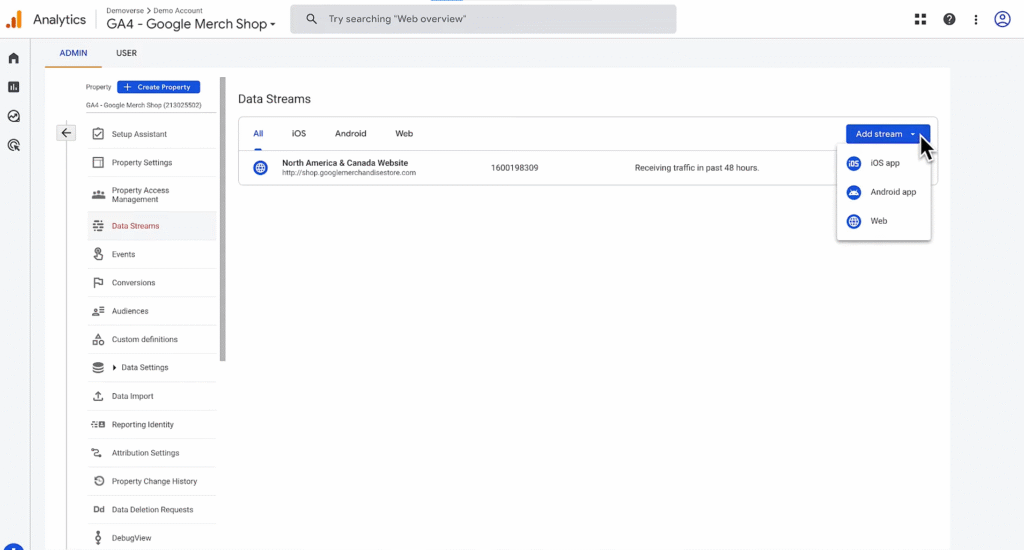
- In your GA4 property, navigate to Admin -> Data Streams
- Click Add Stream -> iOS App or Android App
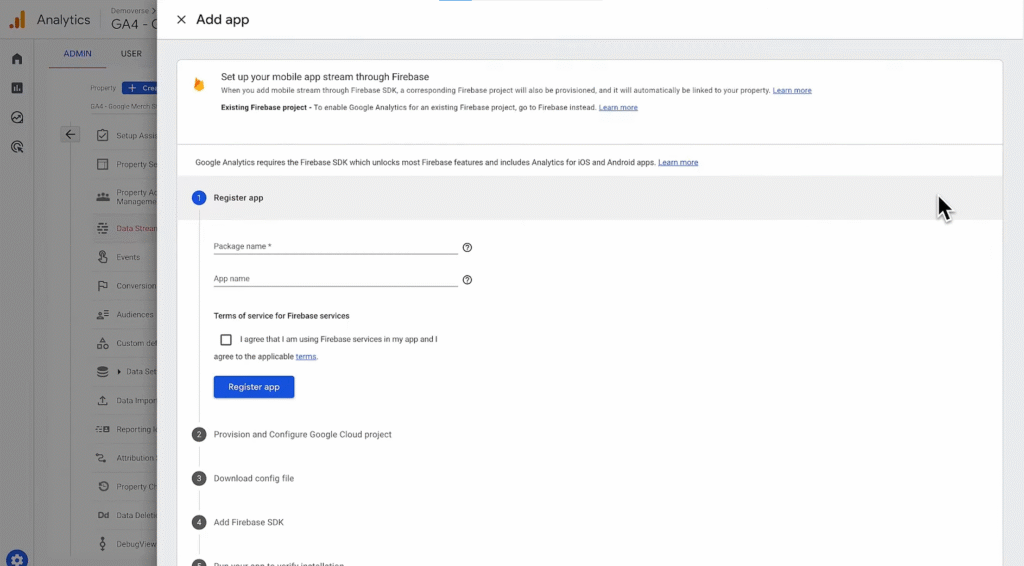
- For Android, you’ll need your package name
- For iOS, enter your bundle ID
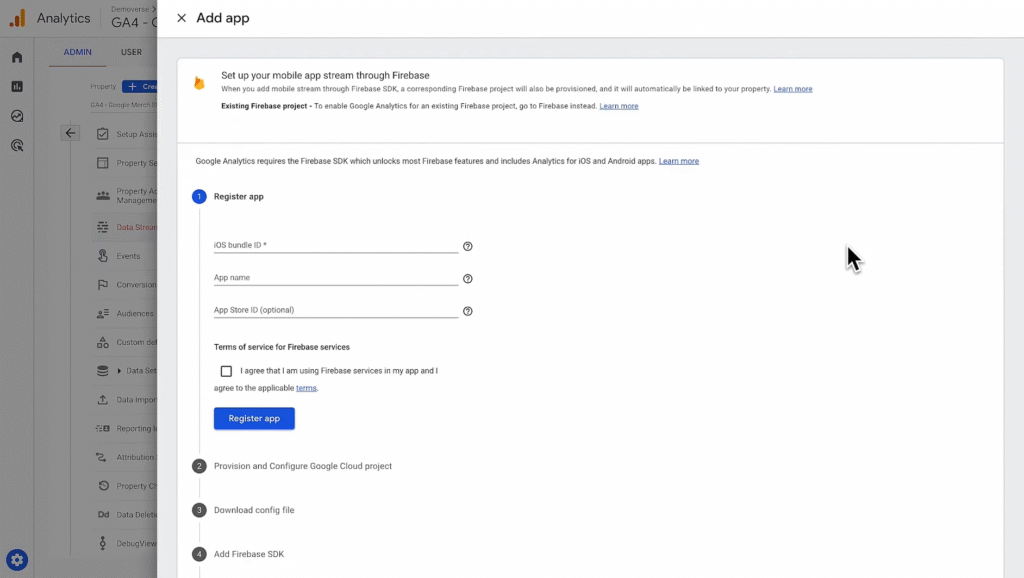
- Fill in the required app details (app name, ID, etc.)
- Click Next
- GA4 will now:
- Create the Firebase project (if needed)
- Link Firebase with your GA4 property
- Provide platform-specific setup instructions
Step 3: Set Up Firebase SDK in Your App
After creating the data stream, you or your developer must integrate the Firebase SDK into your app.
- Firebase provides specific setup steps for:
- Android (Gradle configuration)
- iOS (Xcode project setup)
You can find platform-specific guides within the Firebase console or Firebase documentation.
Note: If your app is already using Firebase, you can simply enable Google Analytics from the Firebase console.
Step 4: Automatically Collected App Events
Once the Firebase SDK is active, GA4 will automatically track several standard events, including:
- first_open – first-time installs
- screen_view – screens viewed in the app
- in_app_purchase – tracked transactions
These baseline events require no additional coding.