
Objective
To organise your Google Analytics reports into collections that group related data together by topic, audience, or business function—making it easier for your team to find and use the insights that matter most.
Overview
As your analytics setup grows with custom reports, the default navigation can become cluttered. Collections in GA4 solve this by letting you group reports into logical, navigable sections. Each collection can include up to five topics, and each topic can contain up to 10 reports.
You’ll need Editor or Administrator access to create and manage collections.
Step 1: What Are Collections?
A Collection is a custom set of reports organised into topics—think of them like folders in a filing cabinet. They allow you to:
- Tailor the left-hand navigation for your property
- Create logical groupings of reports (e.g. by team, geography, or objective)
- Share a curated analytics experience with others
Some built-in collections you may already see:
| Collection Name | Purpose |
| Life Cycle | Covers acquisition, engagement, monetisation, retention |
| App Developer | Appears when Firebase SDK is implemented |
| Games Reporting | Shows funnel insights when an app stream is linked to a games category |
Step 2: Access the Library and Create a Collection
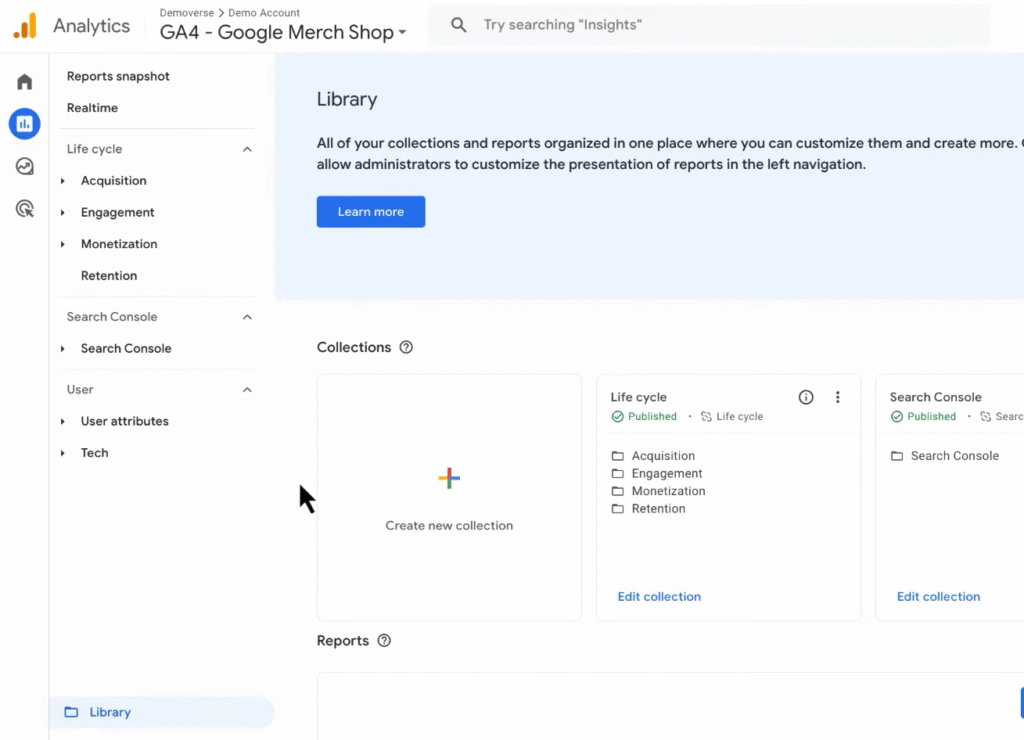
- Go to Reports -> In the left-hand navigation, scroll to the bottom and click Library
- ⚠️ If you don’t see Library, you likely don’t have Editor/Admin access
- Click the + Create new collection icon
- Choose one of the following:
- Blank – start from scratch
- Template – modify an existing collection like Life Cycle
Step 3: Add Custom or Standard Reports to a Collection
Example 1: Add to an Existing Collection
Let’s say you’ve just created a custom report called Session source/medium and want it under the Acquisition topic in the Life Cycle collection:
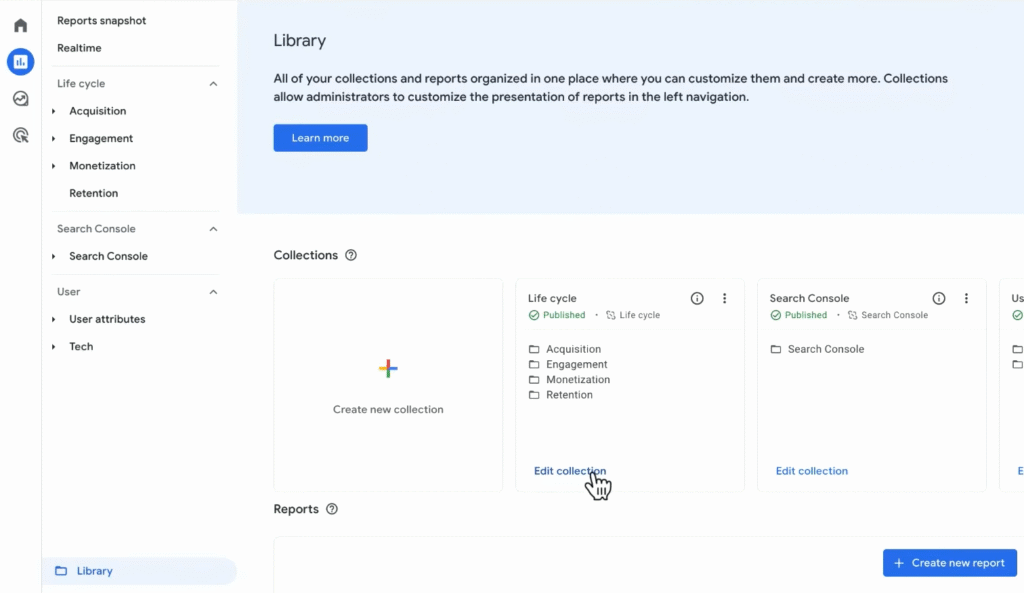
- Go to Reports -> Library -> Click Edit collection for the Life Cycle collection
- In the right column, find your new report (search or scroll)
- Drag the report into the Acquisition topic section
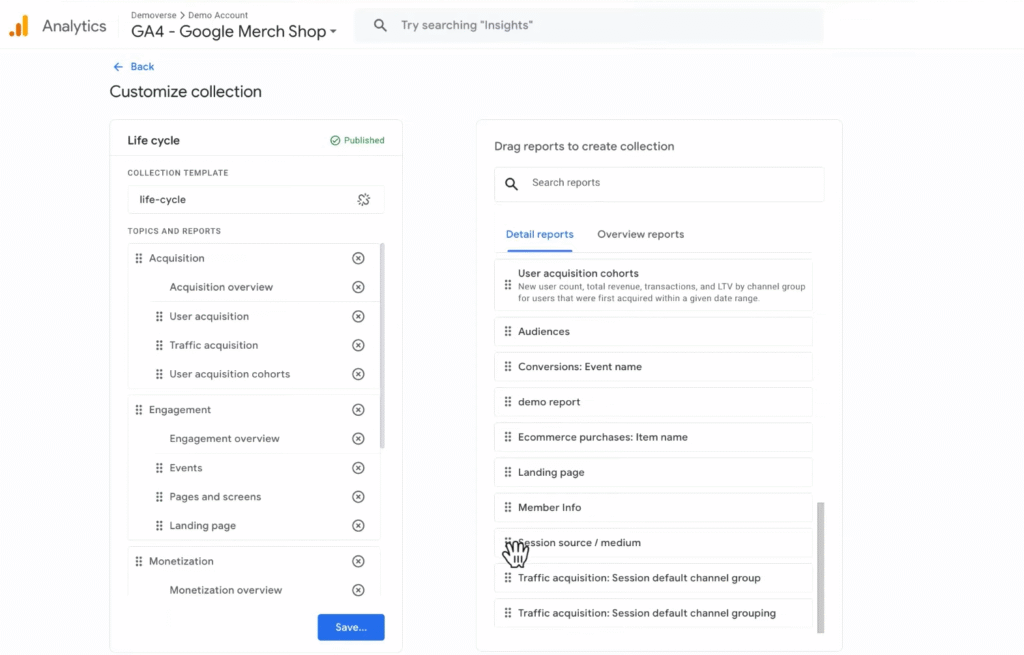
- Click Save
- Choose Save changes to current collection
Your new report will now appear in the left-hand navigation for everyone with access to the property.
Example 2: Create a New Collection From Scratch
Let’s say you want to group customer-centric reports under one new section.
- Go to Reports -> Library -> Click + Create new collection
- Select Blank
- Name the collection, e.g. Customer Analysis
- Click + Create new topic and name it, e.g. Membership
- Find your report Member Info and drag it into the Membership topic
- Optionally, add an Overview report to serve as a dashboard for this topic
- Drag to reorder reports if needed
- Click Save → choose Save as a new collection
Step 4: Publish the Collection
To make your new or updated collection visible to others:
- Go back to the Library
- Find your collection (e.g. Customer Analysis)
- Click the three-dot icon (⋮)
- Select Publish
Once published, the collection appears in the left-hand navigation for all property users.
Step 5: Organise Reports by Business Need
Collections are not just for aesthetic organisation—they help surface the most relevant data to the right people. You can build collections based on:
| Organisational Logic | Example Use Case |
| By Team | Marketing, Product, UX, Development |
| By Funnel Stage | Awareness, Consideration, Conversion, Retention |
| By Business Goal | Form submissions, Revenue, LTV, Customer Engagement |
| By Geography | APAC Reports, North America Dashboard |
| By Report Type | Acquisition, Engagement, Monetisation, Retention |
Pro Tips
- Each GA4 property can have up to 7 published collections
- Each collection can contain up to 5 topics
- Each topic can contain up to 10 reports
- Use overview reports as dashboards inside topics (1 per topic)