
Objective
To demonstrate how to identify, measure, and analyze high-value user interactions by setting them as key events in Google Analytics 4 (GA4), and how these can be used to track business performance, support ad campaign optimisation, and improve the site or app experience.
Overview
Google Analytics uses an event-based data model, where every user interaction is recorded as an event. While many events are collected automatically, others require manual implementation. Among all events, certain actions are more valuable to your business, such as purchases or sign-ups, and should be designated as key events.
These key events:
- Are used across GA4 reports to focus on business-critical actions
- Feed into Google Ads for better conversion tracking and bidding
- Help evaluate what drives user engagement and conversions
Step 1: Understand the Role of Key Events
What Are Key Events?
- Key events represent important user actions such as:
- Signing up for a newsletter
- Downloading a file
- Making a purchase
- Completing a form submission
- They are not just regular events, they are marked as critical to business success.
Why Use Key Events?
- Key events provide insight into what truly drives value.
- Once shared with Google Ads, these are treated as conversions, aligning measurement between GA4 and Ads.
Step 2: Mark Important Events as Key Events
- Go to Admin → Events
- In the list of tracked events, toggle Mark as key event for relevant ones
If your event hasn’t occurred yet, it might not appear in the Events table
- To manually add a key event:
- Go to Admin → Key Events
- Click New key event
- Enter the exact event name
- Click Save
📌 Common key events include:
- purchase
- generate_lead
- sign_up
- add_to_cart
Step 3: Use Key Events in Reports
Once marked, key events appear in multiple GA4 reports, helping you evaluate performance by dimension (e.g., traffic source, page, campaign).
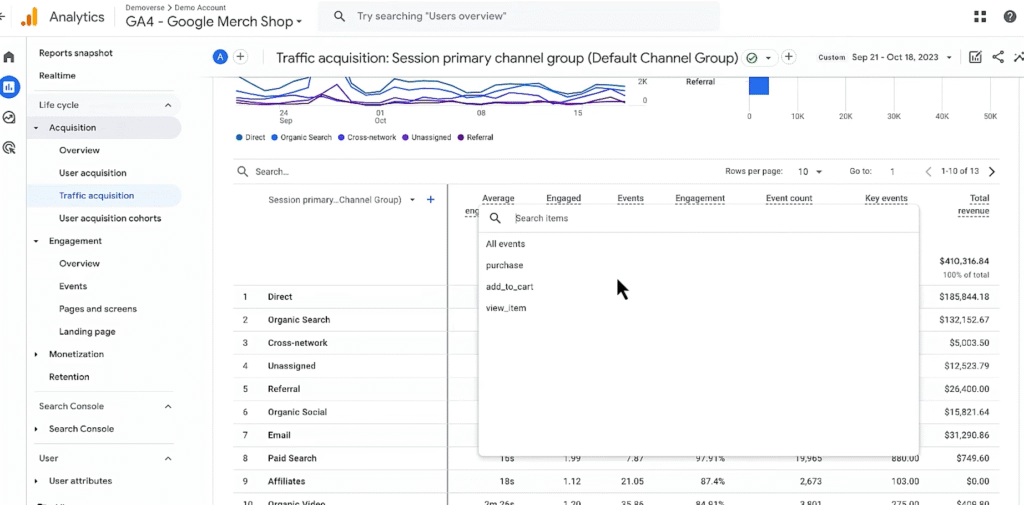
Traffic Acquisition Report:
- Navigate to Reports → Acquisition → Traffic Acquisition
- Scroll to the Key Events column
- Use the dropdown to select a specific key event, like purchase
- Assess how different sources (e.g., Google, Direct, Social) contribute to that event
Pages and Screens Report:
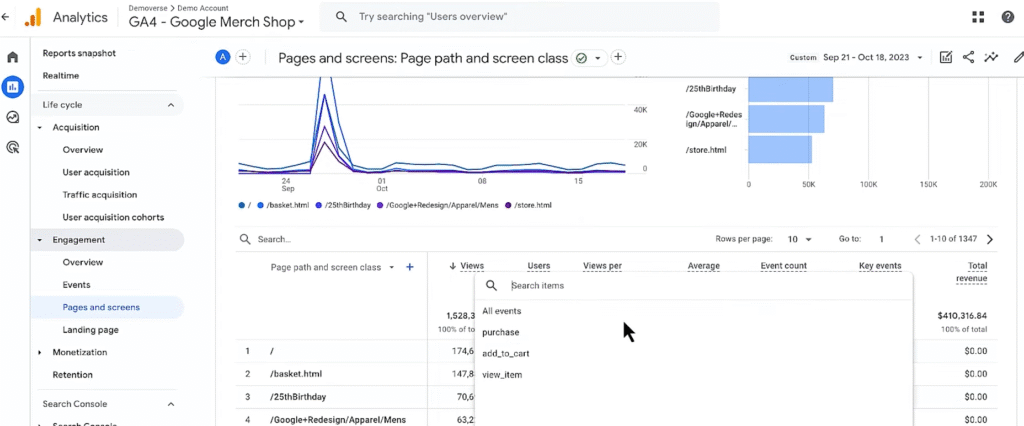
- Go to Reports → Engagement → Pages and Screens
- Filter or sort by a key event (e.g., sign_up)
- Identify which pages contributed most to that action
Step 4: Use Key Events to Improve Marketing & Ads
Once you’ve designated key events:
- Share them with Google Ads
- Use them as conversion goals for campaign tracking and Smart Bidding
- Measure campaign effectiveness by key event completions
Key events bridge the gap between GA4 tracking and Google Ads bidding logic.
Step 5: Connect Business Questions to Key Event Insights
Use key events to answer essential business questions like:
| Business Question | How Key Events Help |
| Are my marketing efforts generating valuable actions? | Track which campaigns are driving purchases, form submissions, or downloads |
| What leads to purchases on my site? | Analyze prior actions like video views or PDF downloads leading to purchase events |
| Is the site experience encouraging important interactions? | Use Pages report to evaluate which content drives the most sign_up or quote_request |
| Are social media posts influencing conversions? | View acquisition reports by source/medium and filter by key events |
| What is the total revenue from in-app purchases or subscriptions? | Collect and report on ecommerce key events using custom parameters |
Step 6: Implement eCommerce Events (If Applicable)
To use purchase-related key events, you’ll need to implement eCommerce tracking:
Setup Requirements:
- Add recommended eCommerce events (like add_to_cart, purchase)
- Implement via:
- Hardcoded JavaScript
- Google Tag Manager
- Firebase SDK (for apps)
eCommerce events require context, such as item name, brand, price, to be meaningful and report correctly.