
Objective
To track key business goals by marking high-value events as conversions in Google Analytics 4 (GA4), helping you measure and optimise user actions that contribute to your revenue and marketing success.
Overview
In this SOP, you’ll learn how to:
- Identify which events to mark as conversions
- Mark events as conversions via the Admin panel
- Add a new conversion event manually
- Unmark or stop tracking conversions
- Understand how conversions appear in reports
Step 1: Understand What a Conversion Is in GA4
A conversion in GA4 is any user action that’s valuable to your business — such as:
- Completing a purchase (purchase)
- Submitting a contact form (generate_lead)
- Signing up for a newsletter (sign_up)
- Completing a level in an app (level_complete)
Before an event can be marked as a conversion, it must already be tracked in GA4.
Step 2: Mark an Existing Event as a Conversion
If the event already appears in GA4:
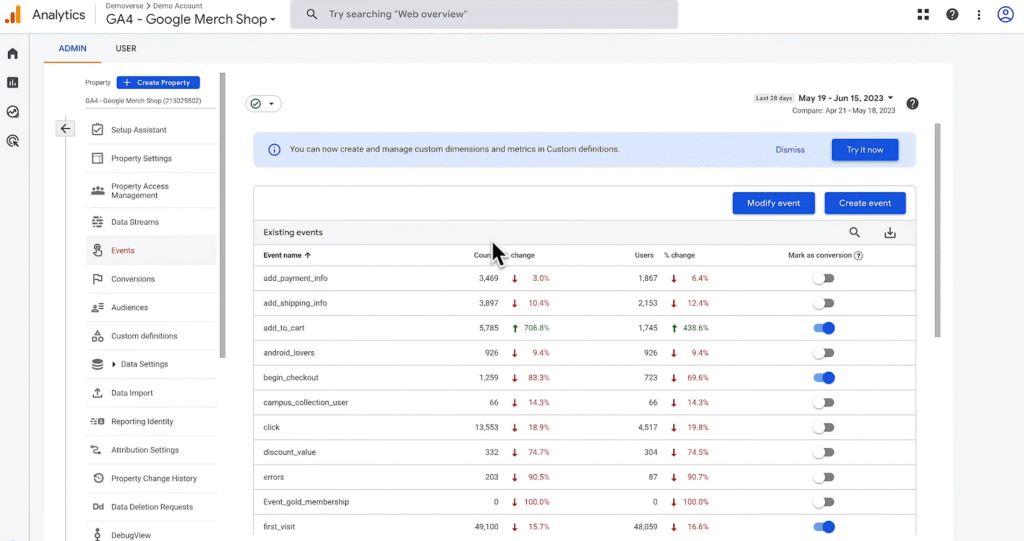
- Go to Admin → Events
- Locate the event in the table
- Under the column Mark as conversion, toggle the switch ON for that event
You must have Editor or Administrator access to mark conversions.
Step 3: Manually Add a New Conversion Event
If the event has been implemented but hasn’t yet appeared in your Events table:
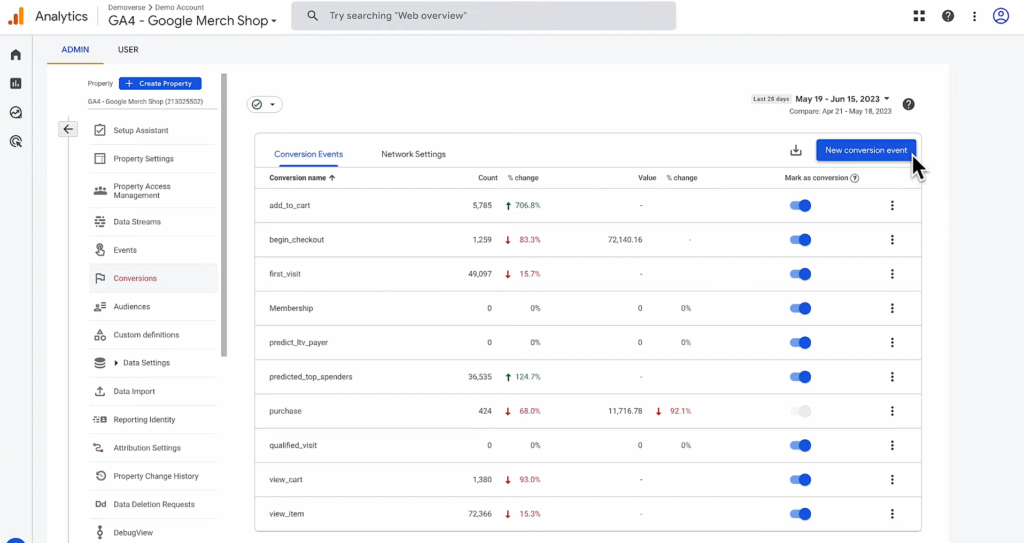
- Go to Admin → Conversions
- Click New Conversion Event
- Enter the exact event name (case-sensitive)
Example: sign_up, add_to_cart, or purchase
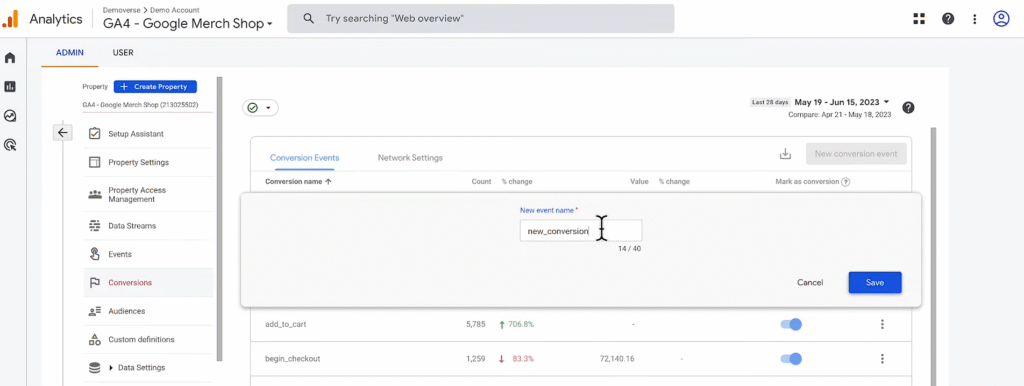
- Click Save
Once this event is triggered by a user, it will begin appearing in your conversion reports.
Step 4: Unmark an Event as a Conversion
To stop collecting conversion data for a particular event:
- Go to Admin → Events
- Locate the event
- Toggle Mark as conversion OFF
This stops tracking future conversions, but does not delete historical data. Past conversions will still be visible in reports.
Step 5: Wait for Data to Populate in Reports
- Realtime report: Conversions may appear within minutes if the event is triggered during your session
- Standard reports: Allow up to 24 hours for conversion events to appear in GA4 reports
Conversions are only applied to data from the time they were marked onward. Historical data won’t be affected.
Example Scenario: Setting Up a Purchase Conversion
Let’s say your website collects an event called purchase when a customer completes a transaction.
Steps:
- Confirm the purchase event is implemented and triggering
- Go to Admin → Events, find purchase
- Toggle Mark as conversion ON
- If not yet visible, go to Admin → Conversions → New Conversion Event and enter purchase manually
You’ll now see this conversion reflected in the Conversions report going forward.
Note
- Conversion events must match exactly (case-sensitive) with the event name you are collecting
- You can mark up to 30 events as conversions in GA4 (unless using Analytics 360)
- Use conversions strategically to align with measurable business objectives