
Objective
To help users refine and control the data collected in GA4 using cross-domain measurement, unwanted referral exclusions, and data filters — ensuring reports reflect clean, accurate, and relevant user behaviour.
Overview
In this SOP, you’ll learn how to:
- Implement cross-domain measurement
- Exclude unwanted referral sources
- Set up data filters for internal and developer traffic
- Understand the impact of filtered data on your GA reports
Step 1: Implement Cross-Domain Measurement
Cross-domain measurement allows you to track user activity seamlessly across multiple websites (e.g., your main site and a payment processor).
Why it’s important:
Without cross-domain tracking, a user’s journey from site A to site B (e.g., cart to checkout) appears as two separate sessions, breaking attribution.
How to Set It Up:
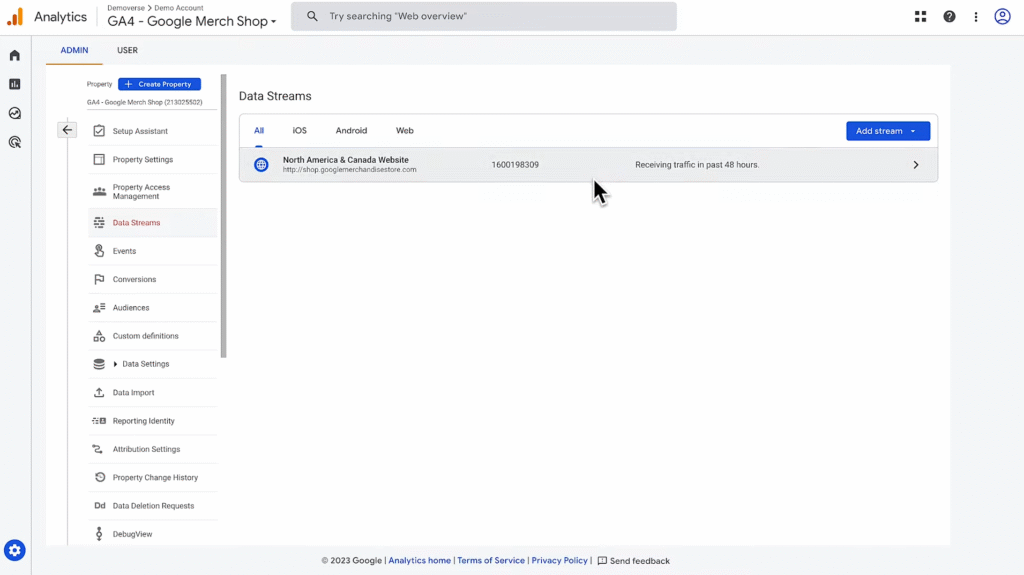
- In GA4, go to Admin → Data Streams
- Click your Web data stream
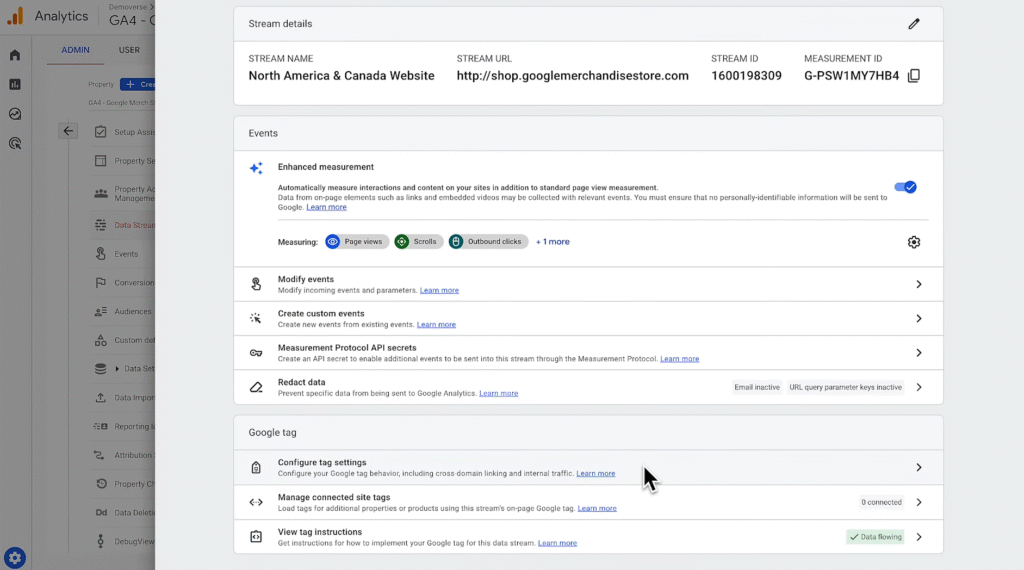
- Select Configure Tag Settings
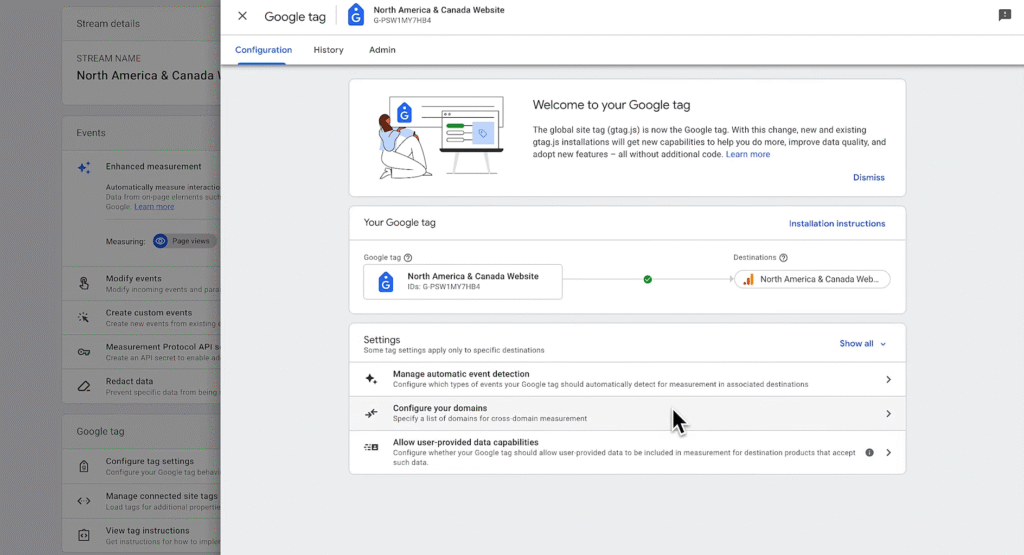
- Click Configure Your Domains
- Add domains you want to include (e.g., shop.example.com, checkout.example.com)
- Use conditions like “contains” followed by the domain name
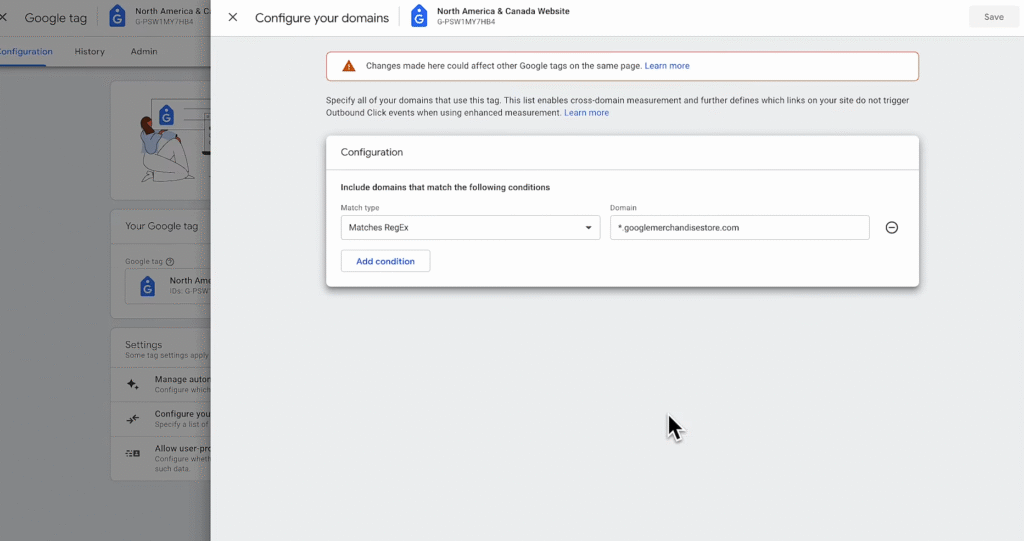
- Save your settings
When cross-domain tracking is working, you’ll see a URL parameter starting with _gl= as you move between domains.
Step 2: Exclude Unwanted Referrals
Unwanted referrals are domains that appear in your reports but don’t represent meaningful traffic sources (e.g., third-party login or payment sites).
How to Filter These Out:
- In Admin → Data Streams, select your Web stream
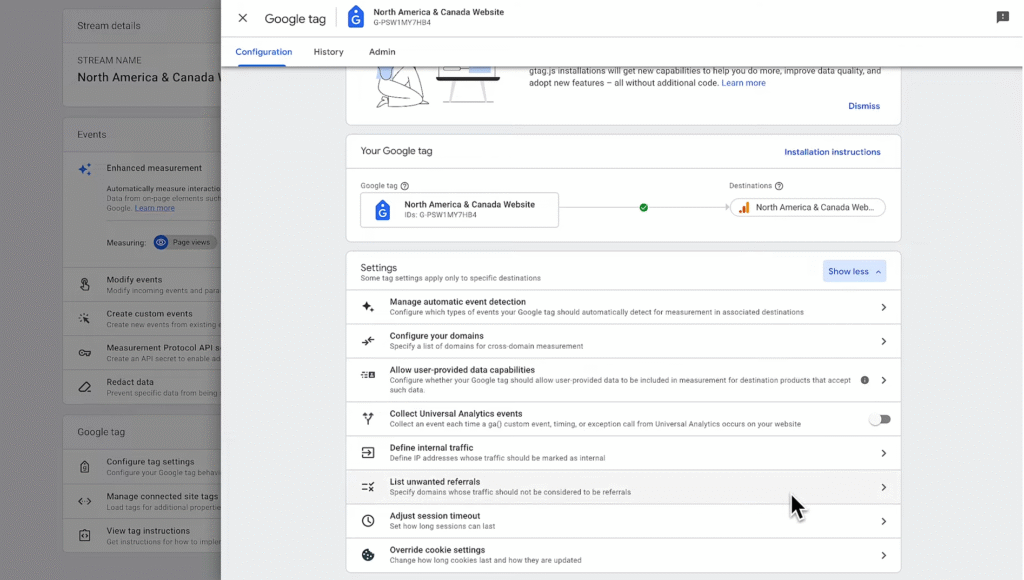
- Click Configure Tag Settings
- Choose Show All → List Unwanted Referrals
- Add domains to exclude (e.g., paymentgateway.com, login.example.com)
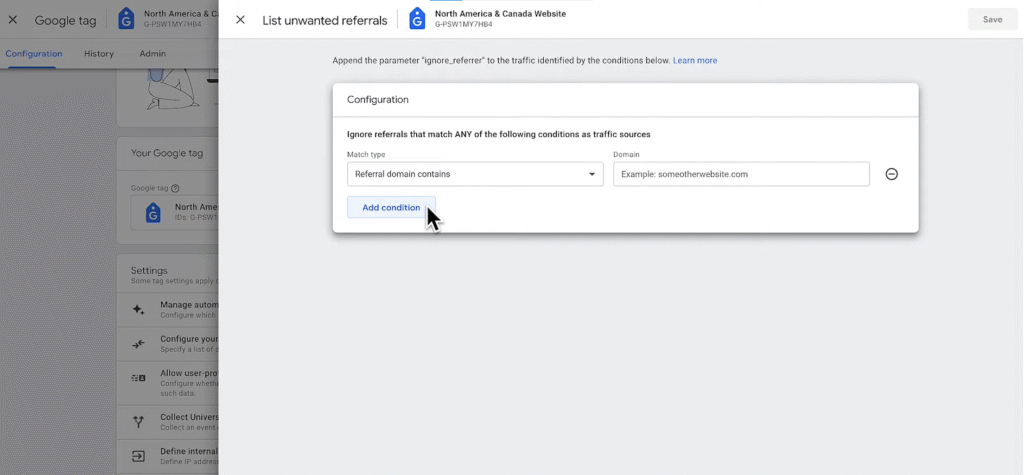
- Click Save
GA4 will now exclude these domains from your referral reports such as Source/Medium or Traffic Acquisition.
Step 3: Set Up Data Filters to Exclude Internal or Developer Traffic
GA4 allows you to exclude certain traffic types before they are processed into reports using data filters.
There are two main reasons to use these filters. The first is to exclude internal traffic coming from you or your employees. The second is to use a data filter to exclude developer traffic when developers are using tools to debug or troubleshoot issues.
Types of Data Filters:
| Filter Type | Purpose |
| Developer Traffic | Exclude test/debug traffic when debug mode is enabled |
| Internal Traffic | Exclude employees and teams using known IP addresses |
A. Define Internal Traffic First
- In Admin → Data Streams, select your Web stream
- Click Configure Tag Settings → Show All → Define Internal Traffic
- Click Create and add:
- Rule name (e.g., “Office IP”)
- IP address or address range
- Save the rule
B. Create the Data Filter
- Go to Admin → Data Settings → Data Filters
- Click Create Filter
- Select either:
- Internal Traffic
- Developer Traffic
- Name the filter and set Filter State:
- Testing: Data is tagged but still appears in reports
- Active: Data is excluded from all processing
- Click Create
Once active, data filtered out is permanently excluded and cannot be recovered.
Example: Jason’s eCommerce Setup
- Jason runs a sneaker eCommerce store.
- He uses a second domain for processing payments.
He Implements:
- Cross-domain measurement to maintain attribution between shopping and checkout
- Unwanted referral exclusions for his payment processor and account recovery sites
- Internal traffic filters to exclude employee IPs
- Developer traffic filters to exclude QA testing
This ensures Jason’s reports only include relevant, customer-facing data.
Note
- You can add up to 50 unwanted referral domains per data stream
- Filters apply only to future data — historical data is unaffected
- Test filters using “Testing” mode before switching to “Active”
- Data filters are powerful and irreversible once active — double-check configurations carefully