
Objective
To help users confidently navigate the Google Analytics 4 (GA4) interface, understand the purpose of each section, and efficiently access reports, data, and account settings.
Overview
This SOP provides an overview of:
- The homepage and navigation layout
- Key sections: Reports, Explore, Advertising, Admin
- Switching between accounts and properties
- Using the search function to find reports and insights
Step 1: Understand the GA4 Homepage
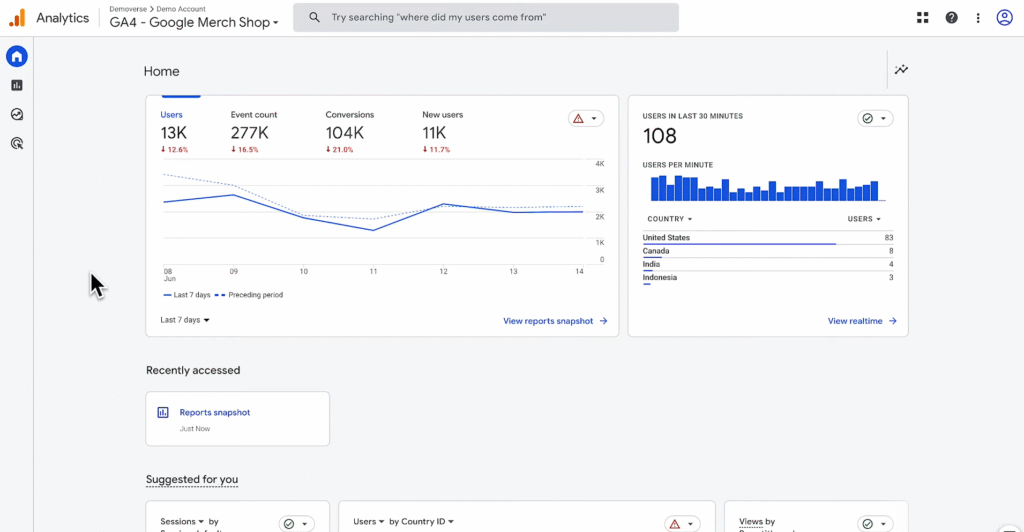
When you log into GA4 at analytics.google.com, you’ll land on the Homepage. This page displays:
- A snapshot of relevant property metrics
- Recently viewed reports and dashboards
- Suggested insights based on your usage
- A feed of trending activity across your site or app
The homepage becomes increasingly personalised as you use GA4 over time.
Step 2: Use the Left-Hand Navigation Menu
On the left side of your screen, you’ll find GA4’s core navigation menu. This menu includes the following sections:
Home
The starting point of your Analytics experience. View an overview of real-time traffic, recent activity, and intelligent insights.
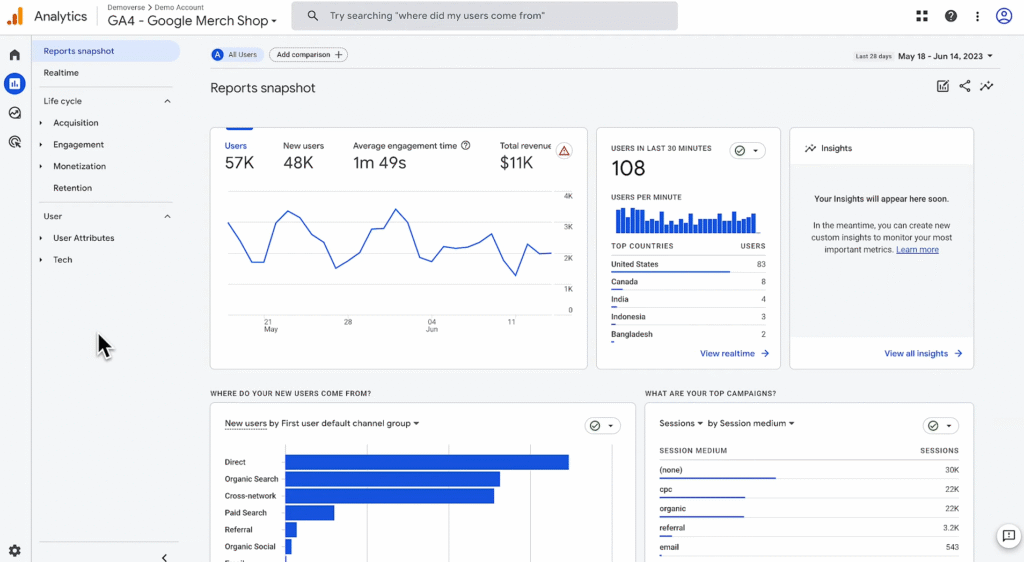
Reports
Access default reports showing how users interact with your site or app.
Examples include:
- Acquisition reports (where users come from)
- Engagement reports (what users do)
- Monetisation (if ecommerce is enabled)
You can also customise these reports or add new ones to suit your business needs.
Explore
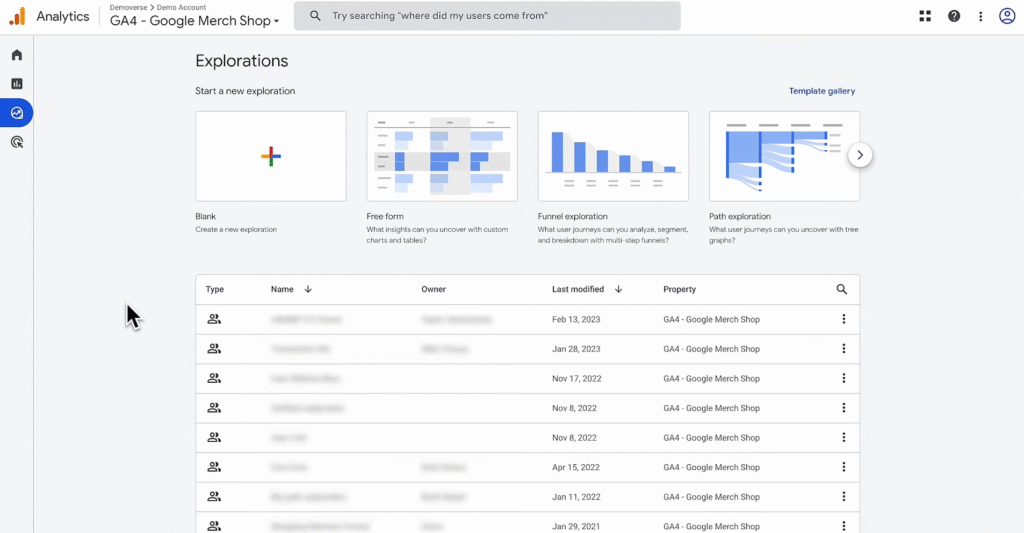
Use advanced analysis techniques such as:
- Free form tables
- Funnels
- Pathing analysis
- Cohorts
These tools let you dive deeper into customer behaviour and patterns.
You can also create reusable segments or export audiences from your explorations.
Advertising
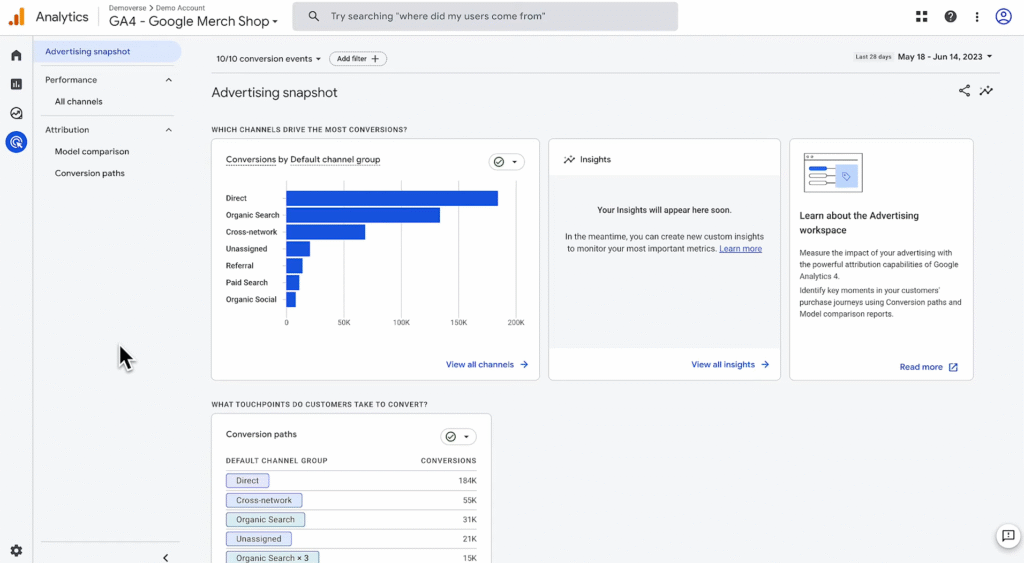
Understand the impact of your marketing campaigns.
- View return on investment (ROI) for ad spend
- Evaluate different attribution models
- Analyse campaign performance across Google Ads and other platforms
To unlock full functionality, link your GA4 property with Google Ads in the Admin section.
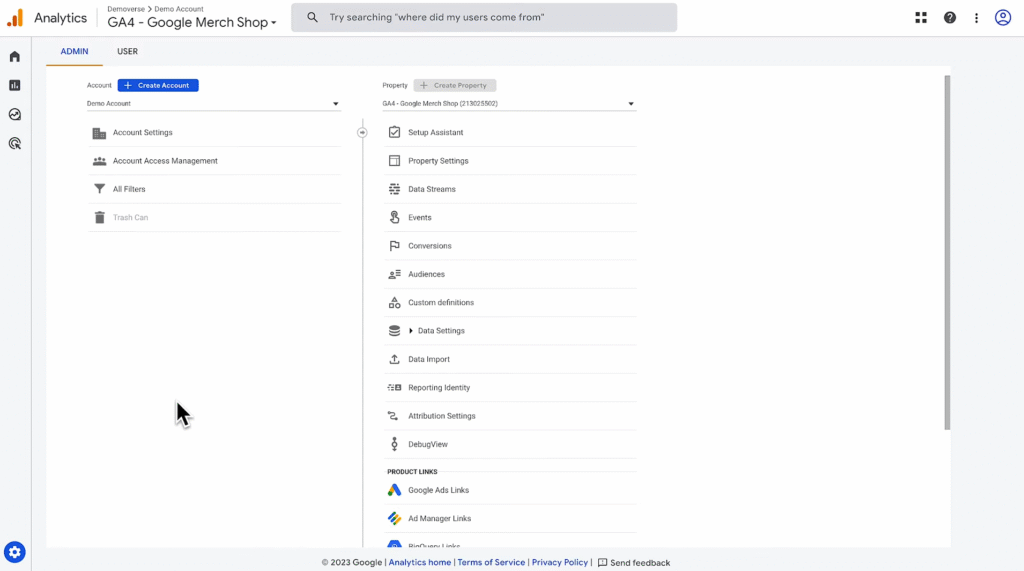
Admin
To access Admin, click on the gear icon (⚙) on the bottom-left corner of your GA4 account. Manage your GA4 account structure and settings, including:
- User access
- Data streams
- Events
- Data settings
- Integrations
Step 3: Switch Between Accounts and Properties
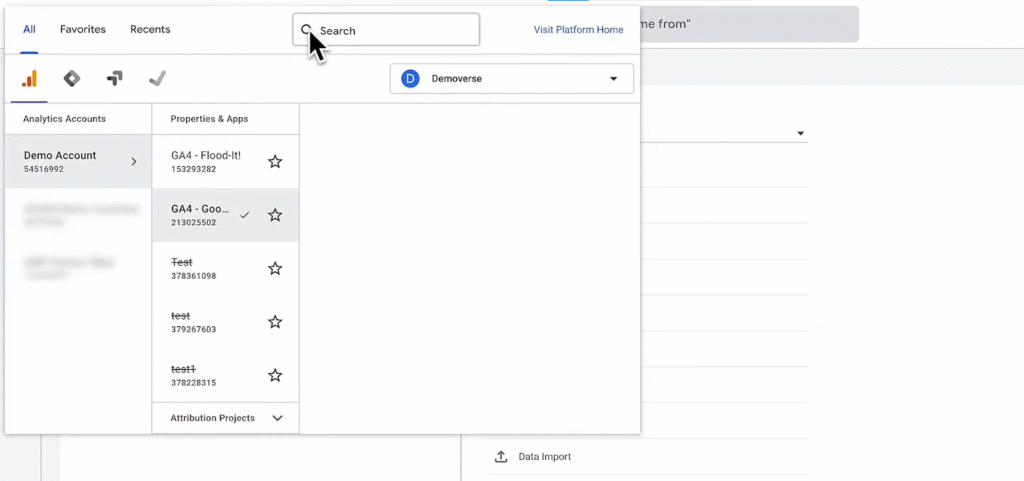
If you have access to multiple GA4 accounts or properties:
- At the top of the screen, click the property selector
- Choose the desired account and property
For example, in the GA demo account, you can switch from the Google Merchandise Store to Flood-It! by selecting it under Properties & Apps.
Step 4: Use the Search Bar for Quick Insights
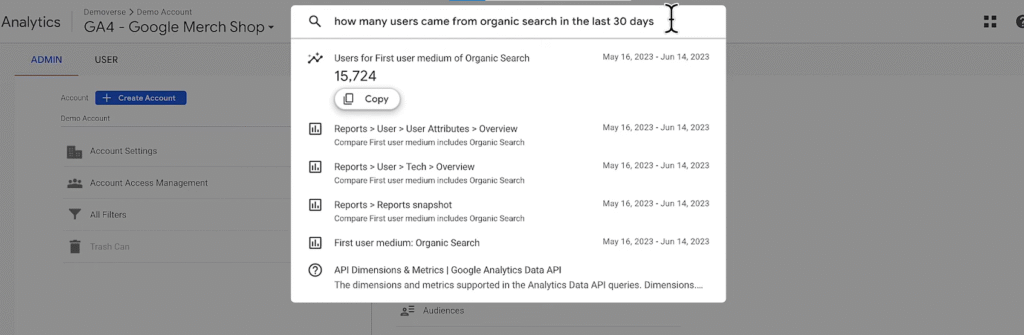
The search bar at the top of the interface is a powerful tool for:
- Accessing specific reports
- Getting real-time answers to plain-language questions
- Finding Help Center articles
- Returning recent reports or suggested queries
Example queries:
- “How many users came from organic search last month?”
- “Compare new users this month vs. last year”
Just start typing, and GA will offer smart suggestions and clickable results.
Note
- As you interact more with GA4, the homepage and search results will adapt to surface more relevant content.
- All standard navigation elements remain accessible regardless of which report or view you’re in.