
Objective
To connect your website to your Google Analytics 4 (GA4) property through the appropriate data stream and tracking tag, ensuring accurate and automatic data collection across all pages.
Overview
In this SOP, you’ll learn how to:
- Create a web data stream
- Generate a GA4 Measurement ID
- Add the GA4 tag to your website using:
- Google Tag Manager (recommended)
- Manual installation
- Website builder or CMS platforms
- Enable enhanced measurement
Implementation
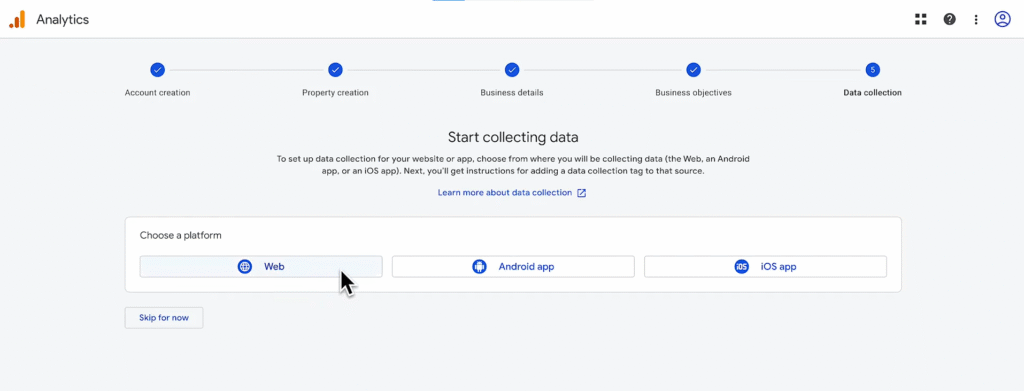
Once the property is created, follow the prompt to create a web data stream:
- In the prompt for Data Collection (5), choose Web
- Enter your Website’s URL and Stream name
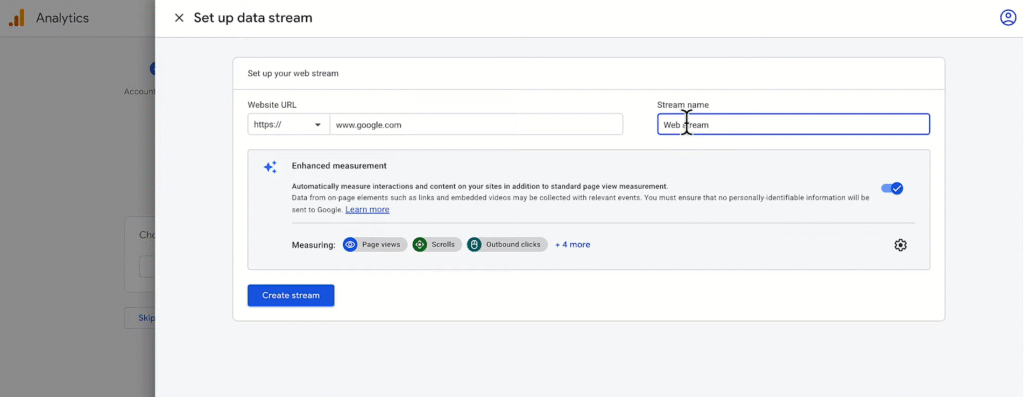
- Select Create Stream
This will generate a measurement ID (a website tag specifically for your website).
- A pop up called Web Stream Details will automatically appear -> Select Learn More to add measurement ID to your website.
- A pop up called Installation instructions will appear.
- If you’re using a CMS system or a website builder, select Install with a website builder or CMS -> Copy the measurement ID -> Paste it into your website builder account. You can select your website builder to view instructions.
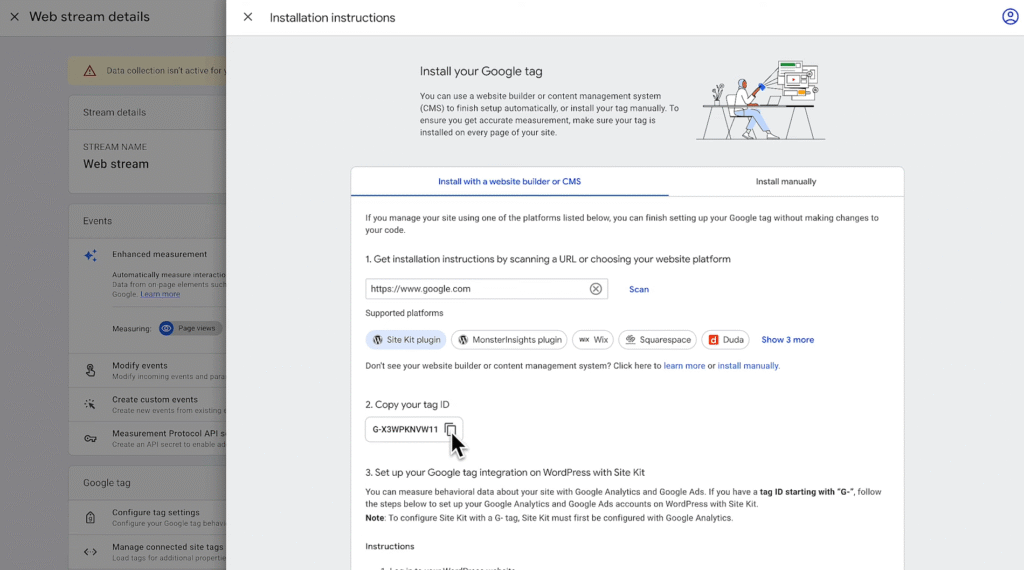
- If you do not use a website builder, you’ll need to install the Google tag on your website. There are 2 options to choose from.
- Option #1: Use Google Tag Manager (GTM).
GTM allows you to install code on your website pages and add to and change that code at any time using the account’s interface. GTM serves as a central place to manage and update all of your marketing and website tags.
Tip: GTM is recommended to install your Analytics tag.
- Option #2: Manually adding the Google tag
Select Install manually -> Copy the Tag code -> Paste on every page of your website immediately after the <head> tag
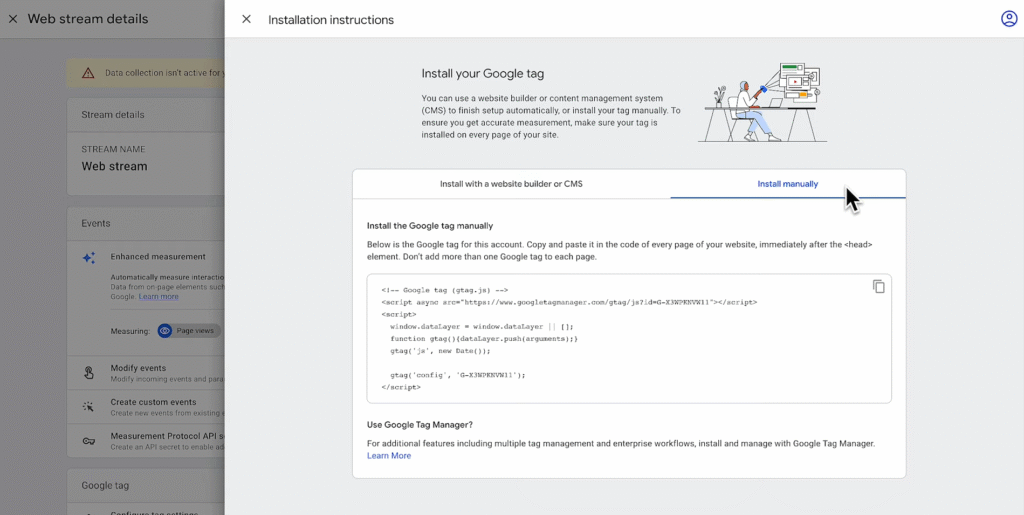
Once you’ve installed the Analytics tag on your website, you’ll start collecting many points of data automatically to the Google Analytics property.