
Objective
To help users correctly set up a new Google Analytics (GA4) account, property, and data stream structure in alignment with their business model. This ensures clean data collection and accurate reporting from web and/or mobile sources.
Overview
This SOP covers:
- Understanding the structure of a Google Analytics account
- Mapping GA4 account structure to your business model
- Step-by-step setup of a GA4 account and property
- Choosing data sharing and business objectives
- Initial configuration of data streams
Step 1: Understand the GA4 Structure
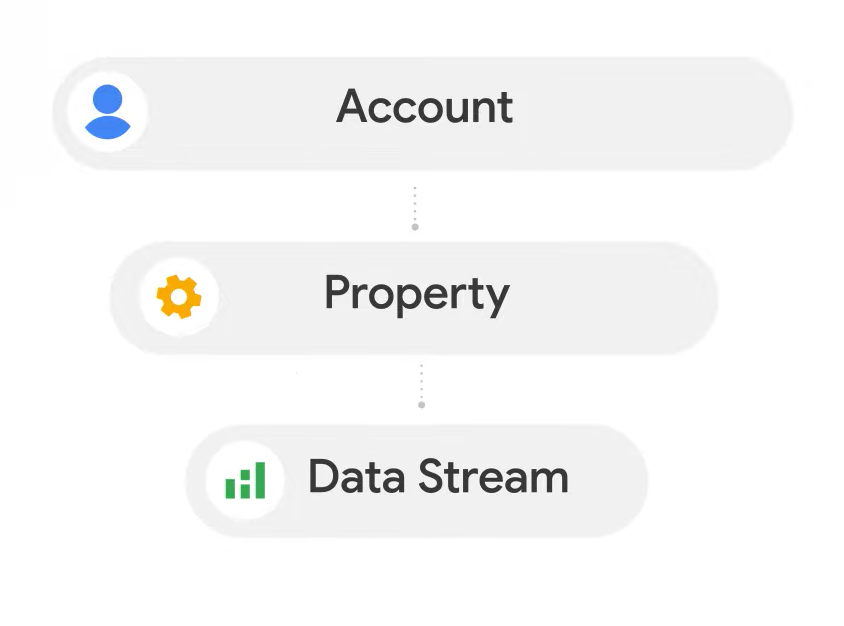
A Google Analytics 4 setup is made up of three core levels:
- Account
A container for properties owned by a business entity. Each organisation should typically have one account. - Property
Represents a grouping of user data, like from a website, an app, or both. This is where your data is processed and linked to tools like Google Ads. - Data Stream
Represents the flow of data from a website or an app to the property, and the source of incoming data. There are three types of data streams:- Web data stream (for websites)
- iOS app stream
- Android app stream
Best Practice:
Note that in most cases, you should use a single web data stream to measure the web user journey to ensure consistent user and session reporting. For web journeys that span domains, use a single web data stream combined with cross domain measurement.
Step 2: Map Your Account Structure to Your Business
Match your GA4 account/property structure to your business operations. Here are a few common setups:
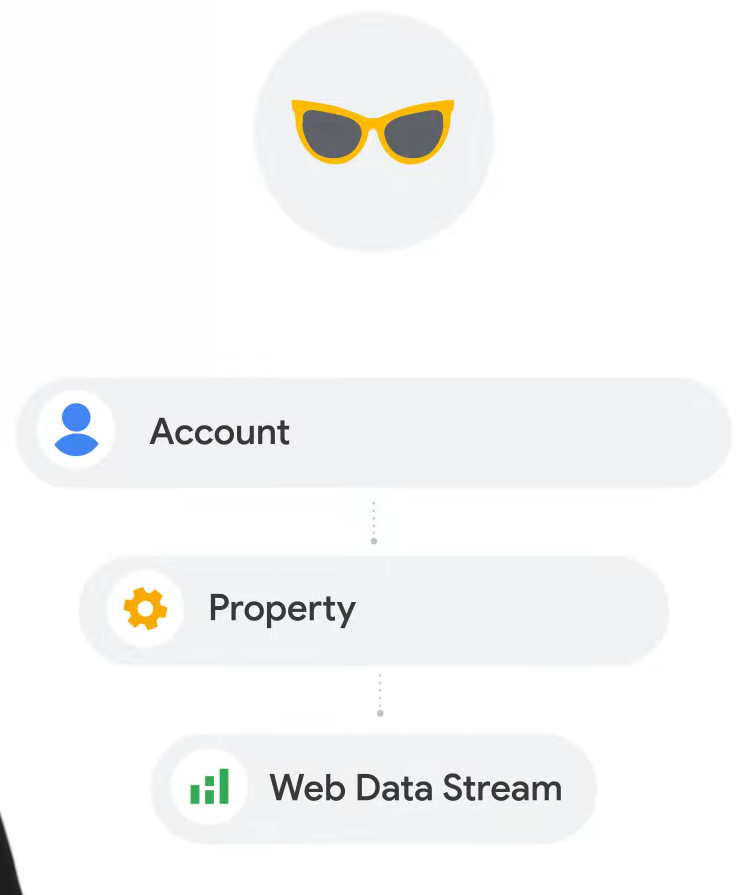
Example 1: Simple Website
Business: Fashion blog with one site
- 1 Account
- 1 Property (for the blog)
- 1 Web data stream
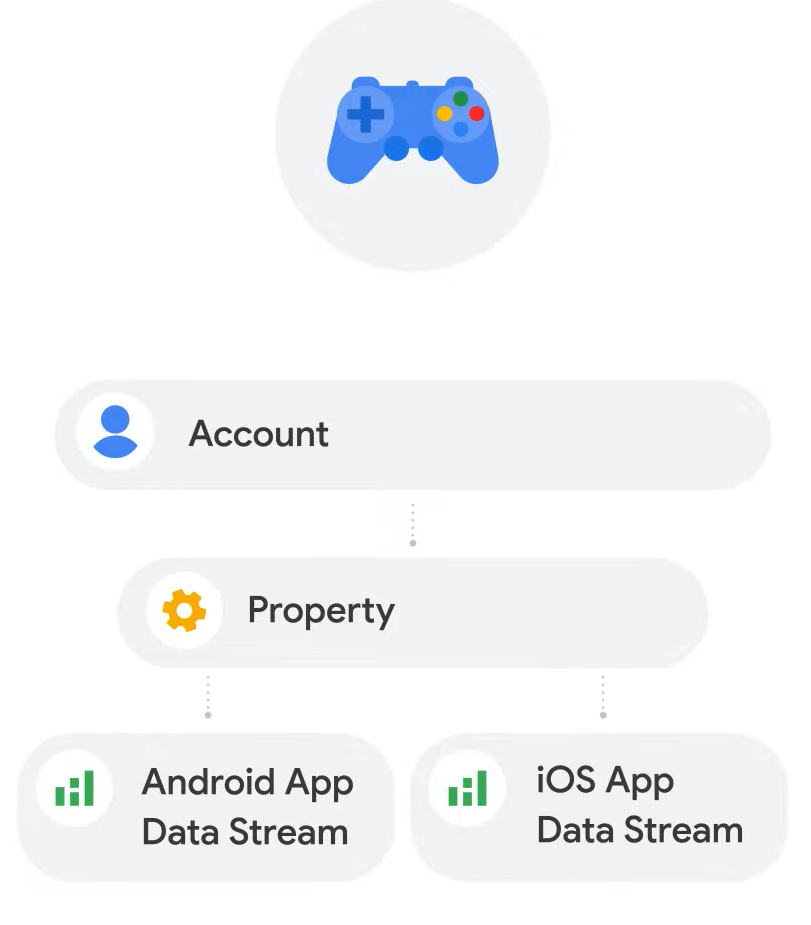
Example 2: Mobile Game App
Business: Mobile game on Android & iOS
- 1 Account
- 1 Property
- 2 App data streams (iOS and Android)
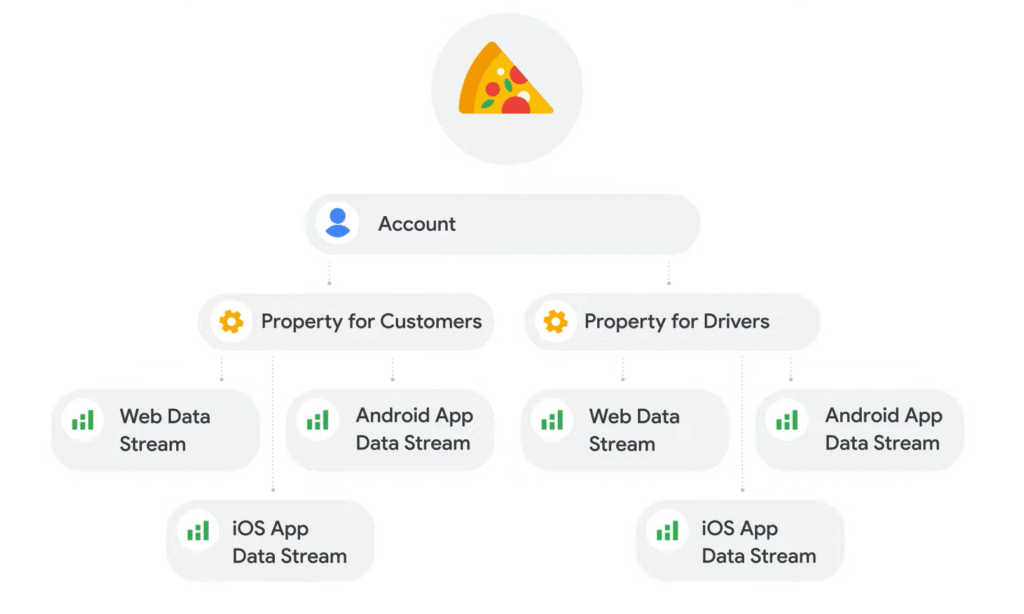
Example 3: Multi-Platform, Multi-User Base Business
Business: Food delivery service for customers and drivers
- 1 Account
- 2 Properties (1 for customers, 1 for drivers)
- Each property has 3 data streams:
- Web
- iOS
- Android
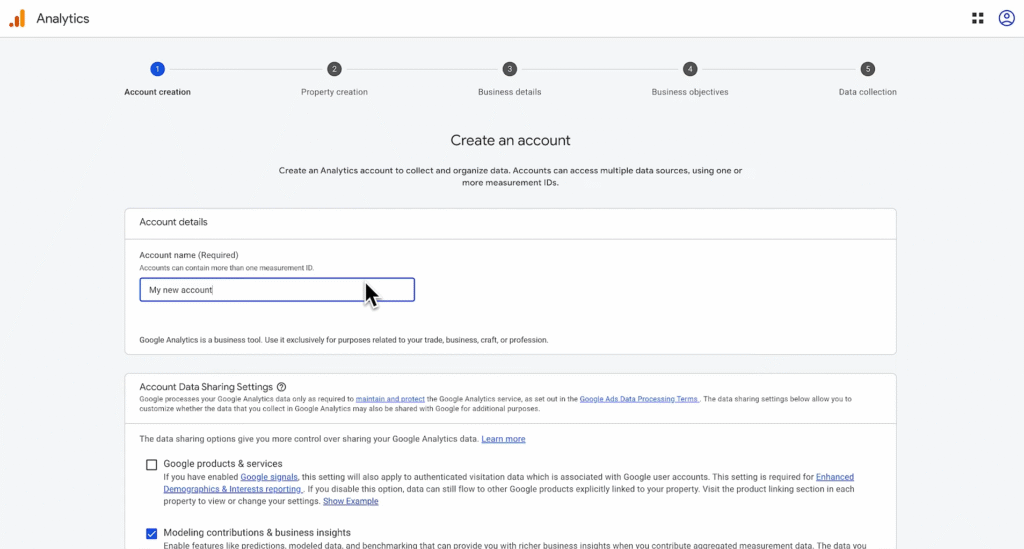
Step 3: Create Your GA4 Account
- Go to analytics.google.com
- Click Start measuring
- Enter your Account Name
- Select your Data Sharing Settings (tick according to privacy preferences)
- Click Next
Step 4: Set Up Your Property
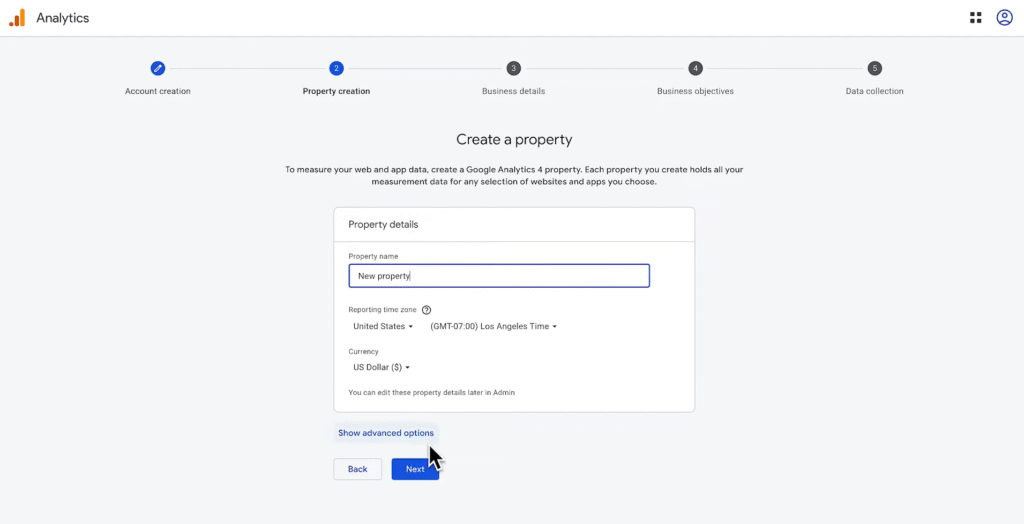
- Enter a Property Name (e.g., “Main Website Property”)
- Set your Reporting Time Zone
- Select your Currency
You can create multiple properties under an Analytics account, but most small or medium-sized businesses will have a single account and property, depending on the structure for things like lines of business, parent entities, and more.
Step 5: Define Business Details & Objectives
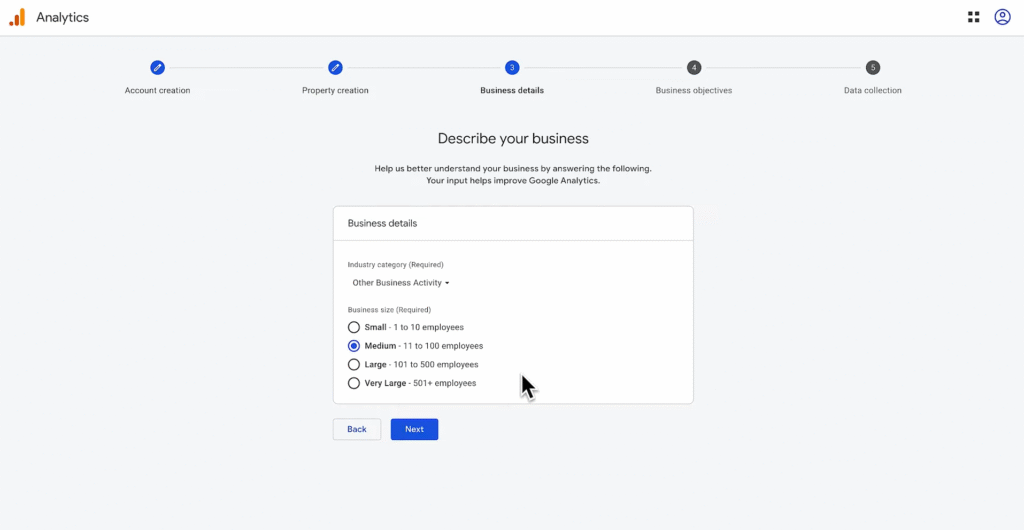
- Answer business size and industry questions
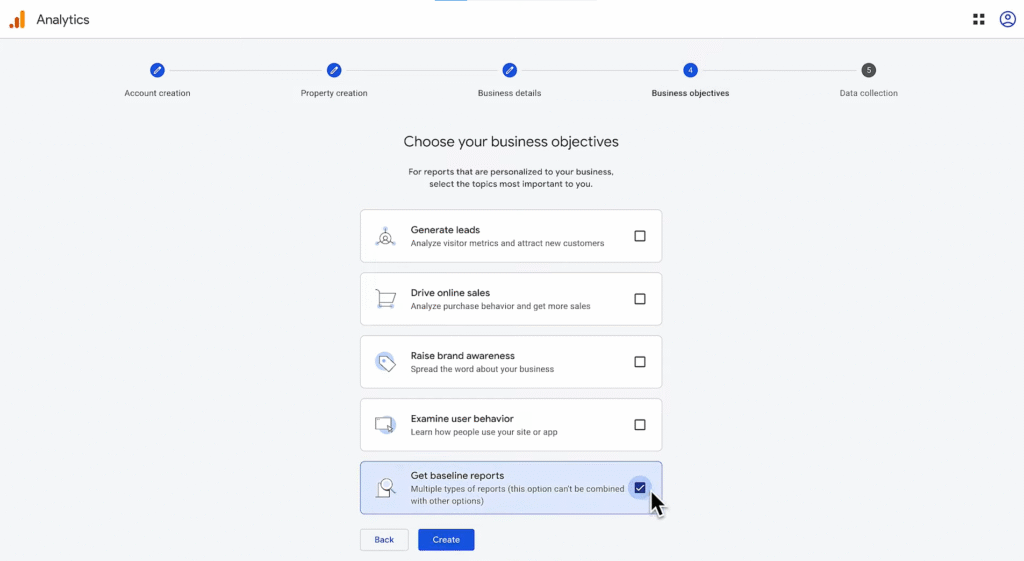
- Choose your Business Objectives
This step is important because it will generate reports specific to the business objectives that you choose.
You may choose from objectives such as:
- Generate leads
- Increase online sales
- Get baseline reports (generic)
Tip: If unsure, choose Get Baseline Reports — you can update this later.
Step 6: Agree to the Terms
- Read and accept the Terms of Service Agreement
- Your Google Analytics account and first property will now be created
NOTE: For the Data Collection (5) portion, continue reading SOP 2 and SOP 3.