
Step 1: Get Your GA4 Measurement ID
- Go to https://analytics.google.com
- Select your GA4 property
- Click the gear icon ⚙️→ Admin
- Under Property, go to Data Streams
- Select your website stream
- Copy your Measurement ID (starts with G-)
Step 2: Create a GA4 Configuration Tag in GTM
- Go to https://tagmanager.google.com
- Choose your container → Go to the “Tags” section
- Click “New”
- Name your tag: “GA4 – Configuration” or sth like that
- Click Tag Configuration → Select Google Analytics: GA4 Configuration
- Paste your Measurement ID
- Leave everything else as default (you can enable enhanced measurement in GA later if needed)
Step 3: Set the Trigger for All Pages
- Under Triggering, click Add Trigger
- Choose “All Pages”
→ This tells the tag to fire on every page load. - Click Save
Step 4: Preview and Test Your Setup
- Click Preview (top right in GTM)
- Enter your website URL → Click Connect
- Your site will open with the GTM debug panel at the bottom
- Navigate through a few pages and check:
- The GA4 – Configuration tag fires on all page loads
- If not, troubleshoot your GTM installation or triggers
Step 5: Publish Your GA4 Tag
- Back in GTM, click Submit
- Add a version name like:
👉 Initial GA4 Setup - Click Publish
Done!
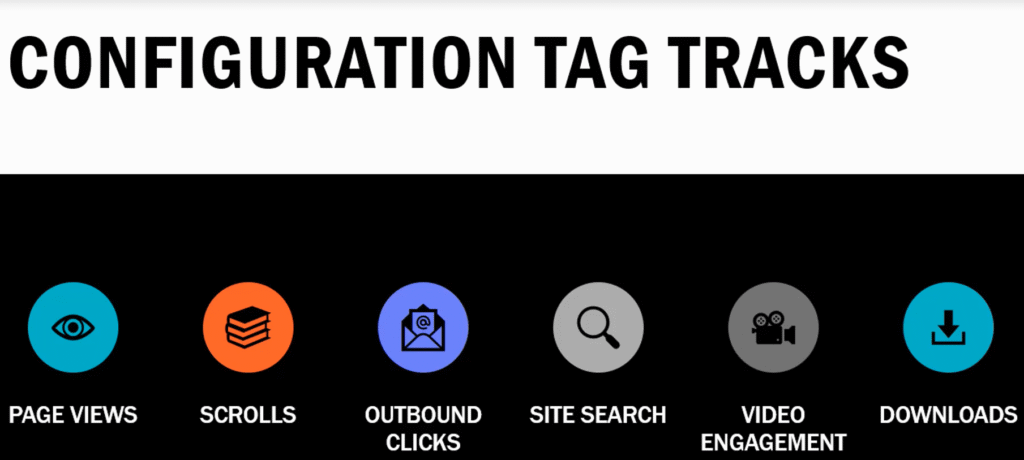
GA4 is now live on your site and tracking pageviews.
To track custom events (like button clicks, form submissions, purchases), you must create GA4 Event Tags.